

If you want crisp, expressive, anime-style portraits — especially clean, detailed faces — PixAI makes it surprisingly easy. By using the right prompts, settings, and generation workflow, even beginners can create high-quality character faces suitable for avatars, illustrations, thumbnails, or concept art.
This guide explains how to do that step by step.
🎯 What Makes PixAI Great for Face Generation
PixAI stands out because it’s tuned for anime/2D-style art, and is especially strong at rendering faces: detailed eyes, smooth skin shading, clean line art, and appealing hair textures.
With proper prompts and settings, you can generate portraits that look polished enough for social media avatars, illustrations, or even print use.
✅ How to Write Effective Prompts for Faces
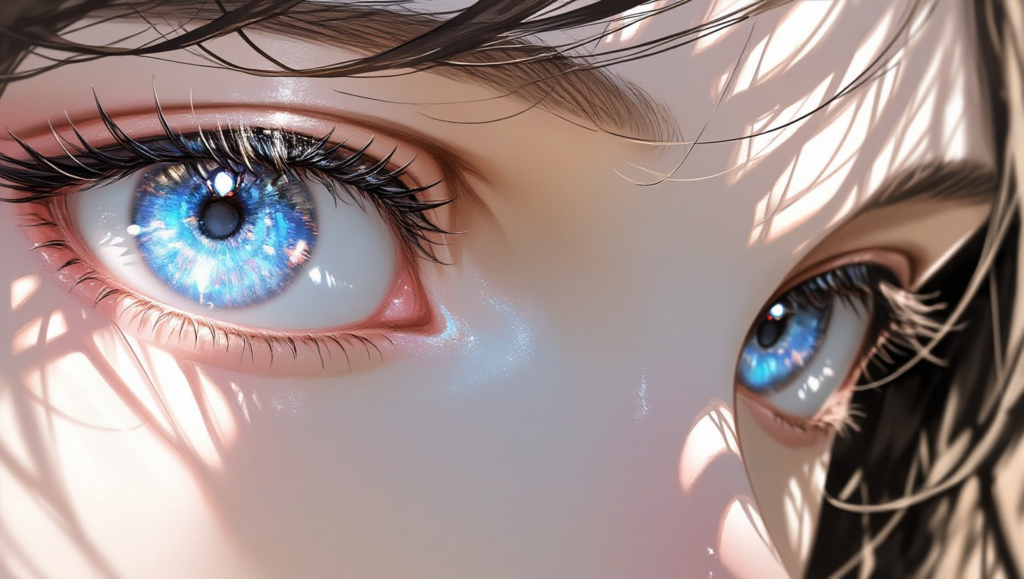
Writing good prompts is essential. Here’s how to do it for face-focused generations:
- Specify subject type: e.g. “1girl”, “1boy”, “portrait”
- Describe face features: eye color, hair color and style, expression, skin tone, facial details (freckles, blush, makeup, etc.)
- Choose style & quality tags: e.g. “anime style”, “detailed face”, “high quality”, “smooth shading”, “clean lines”, “sharp eyes”
- Optional: include background or environment (or “white background” / “plain background”) if needed
Example prompt:
1girl, long silver hair, emerald green eyes, soft smile, close-up portrait, anime style, detailed face, clean line art, smooth shading, high quality
For full-body or half-body art, you can expand the prompt with outfit, pose, lighting, background, etc. But for face generation alone, less is often more.
⚙️ Recommended Generation Settings for Best Results
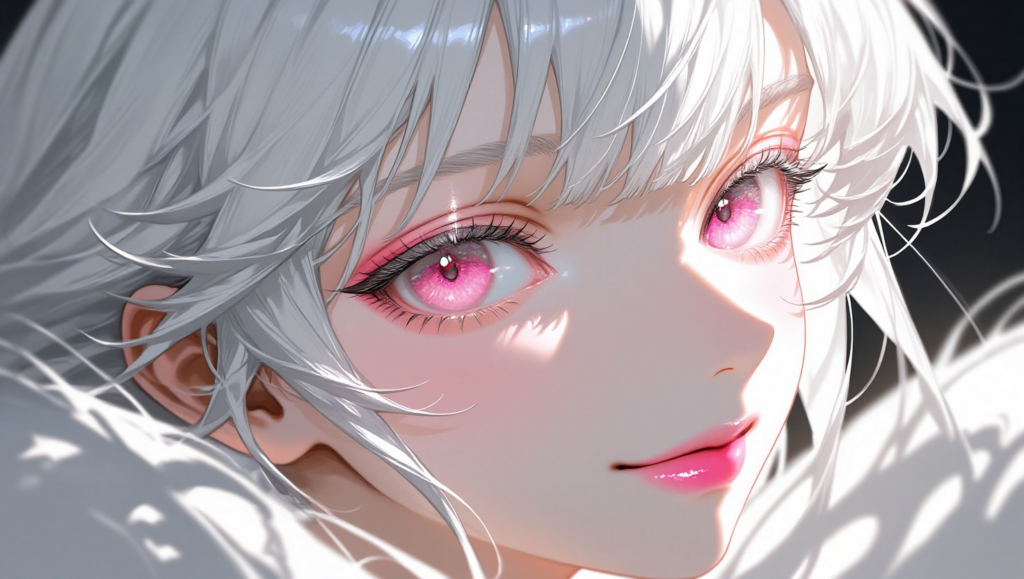
To maximize image quality and detail when generating faces:
- Use a high-resolution setting / enable Hires / High-quality mode.
- Use moderate-to-high sampling steps (e.g. 35–40) to help the model refine features. Changing prompt or model may drastically change results — consistency requires keeping other parameters stable.
- If you want consistent character identity across multiple images, avoid changing seed, model, or prompt drastically between generations. Instead, tweak minor elements only (like hairstyle accessory, expression, lighting).
🧩 Practical Examples & Use Cases
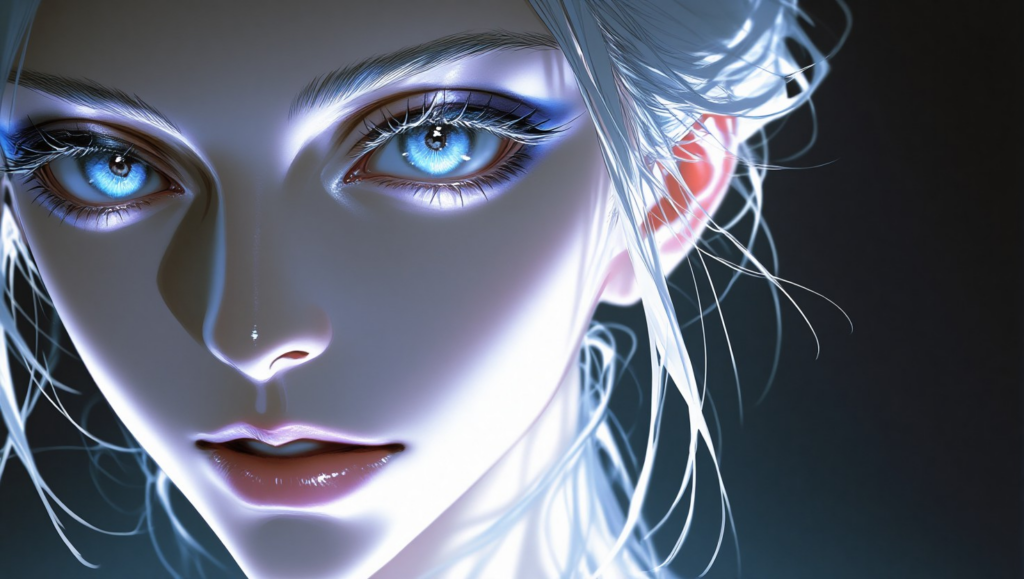
Here are some common ways creators use PixAI-generated faces:
- Portraits for social media avatars or profile pictures
- Character concept art (face close-up) for comics, VTubers, games
- Thumbnails or key visuals for digital content (streaming channels, video covers, fanart)
- Reference art or design sheets for further manual editing or illustration
Because PixAI handles line work, shading, and anime-style details well, these outputs are often ready to use or require minimal post-processing.
🔄 Workflow: From Prompt to Final Face
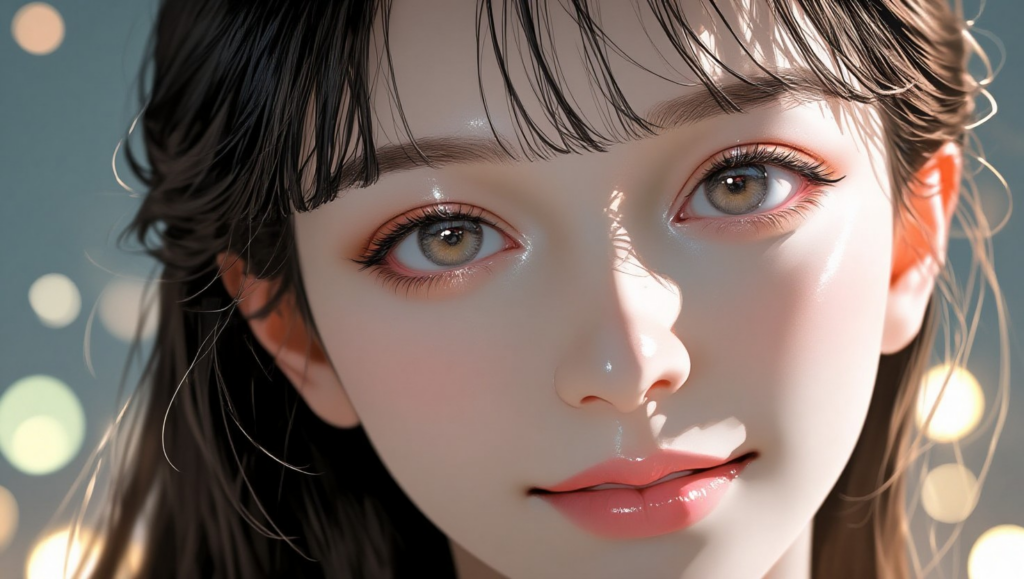
- Define your character vision: gender, hairstyle, eye color, expression, face shape, mood.
- Write a clear, concise prompt focusing on facial features and style (see above).
- Use high-quality settings: enable hires, choose sufficient sampling steps, select anime-style model.
- Generate a batch of variations — compare multiple results.
- Pick the best result — if needed, refine prompt slightly (e.g. add “soft lighting” or “finer details”) and regenerate.
- For consistency across multiple images (e.g. different poses), keep prompt + seed + model consistent, only modify pose/clothing/background as needed.
💡 Tips to Avoid Common Issues
| Problem | Solution |
|---|---|
| Face distortion, weird anatomy, or strange proportions | Use a clearer prompt emphasizing “clean line art”, “detailed face”, and keep sampling steps high |
| Inconsistent character identity across images | Keep prompt, model, seed same; avoid changing too many parameters at once |
| Too noisy or rough image quality | Enable high-resolution / Hires mode; increase resolution or sampling steps |
| Unwanted background clutter | Use plain background tags (e.g. “white background”, “simple background”, “studio background”) |
🔑 Summary — Use PixAI for Stunning Anime-Style Faces
Generating high-quality, appealing anime-style faces is surprisingly accessible with PixAI. With thoughtful prompt construction, proper settings, and a consistent workflow, you can create polished character portraits ready for avatars, illustrations, or further art production — even without advanced drawing skills. Try experimenting: once you find the settings that work, you can efficiently produce multiple versions and build a consistent character identity for your projects.