

We understand that circumstances can change — and sometimes, you may wish to close your PixAI account. Whether it’s for privacy, a fresh start, or simply taking a break, we’ve made the process straightforward while ensuring that you have time to change your mind if needed.
This guide explains how to delete your account on both the web and the mobile app, as well as how to restore it within the 30-day grace period.
On Website
Step 1: Open Your Account Settings
Go to the PixAI website and sign in to your account.
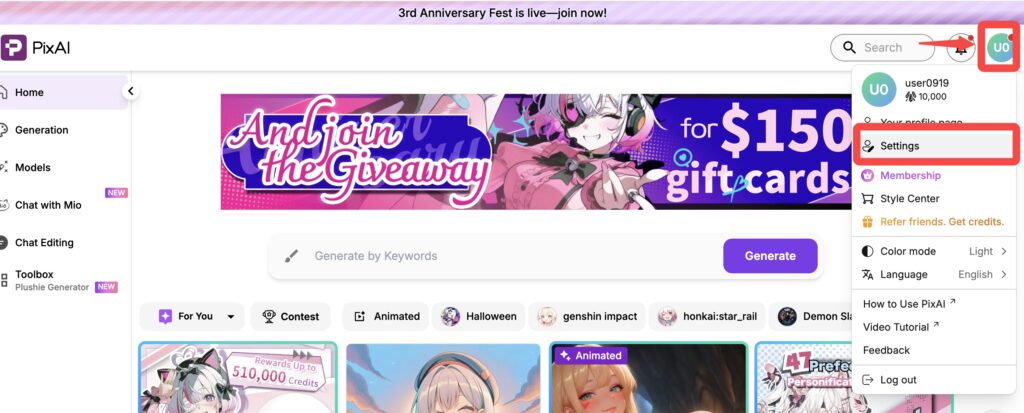
Click your profile avatar at the top-right corner, then select Settings from the dropdown menu.
Step 2: Locate the Misc Section
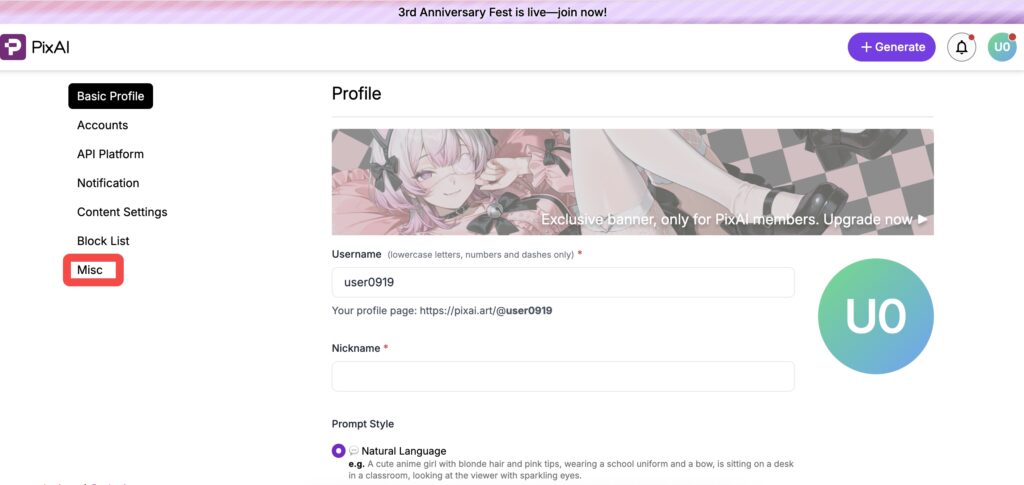
Within the Settings page, you will see several tabs or sections. Navigate to the one labeled “Misc”.
Step 3: Initiate Account Deletion
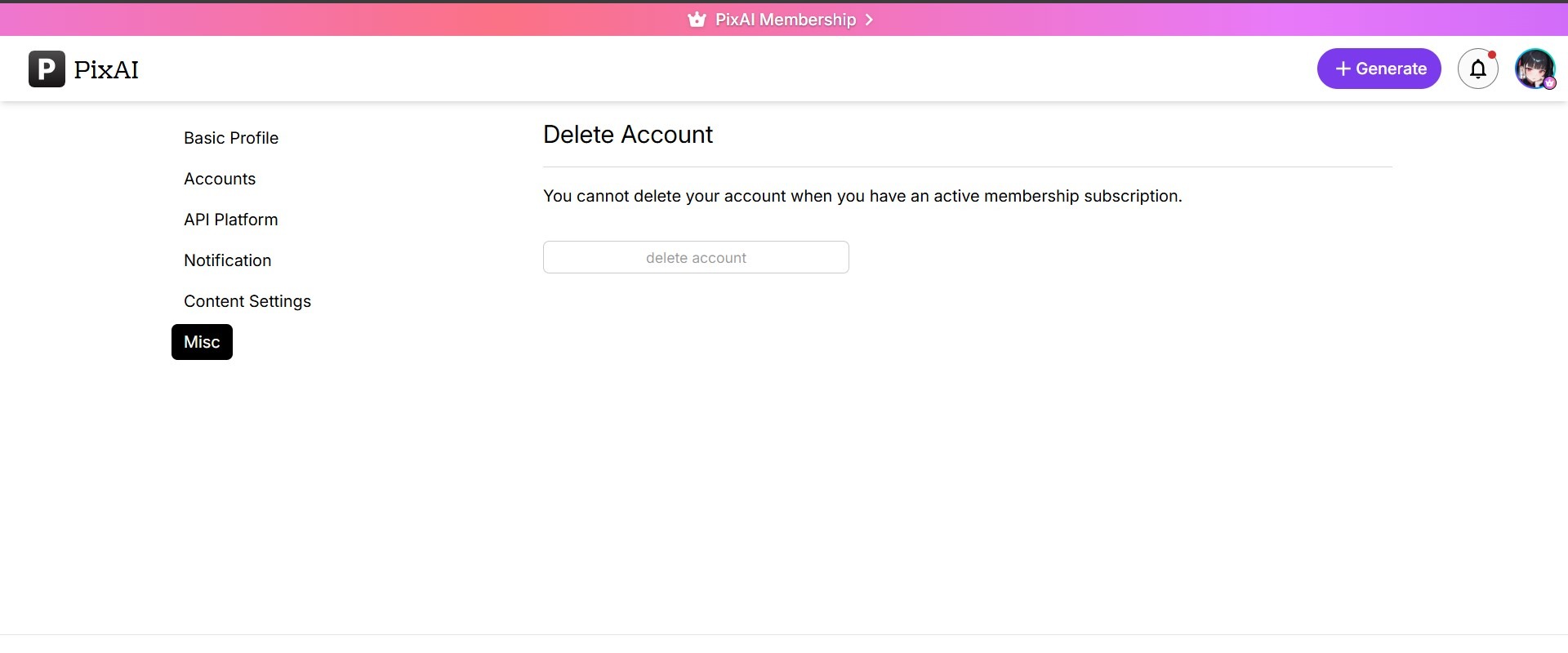
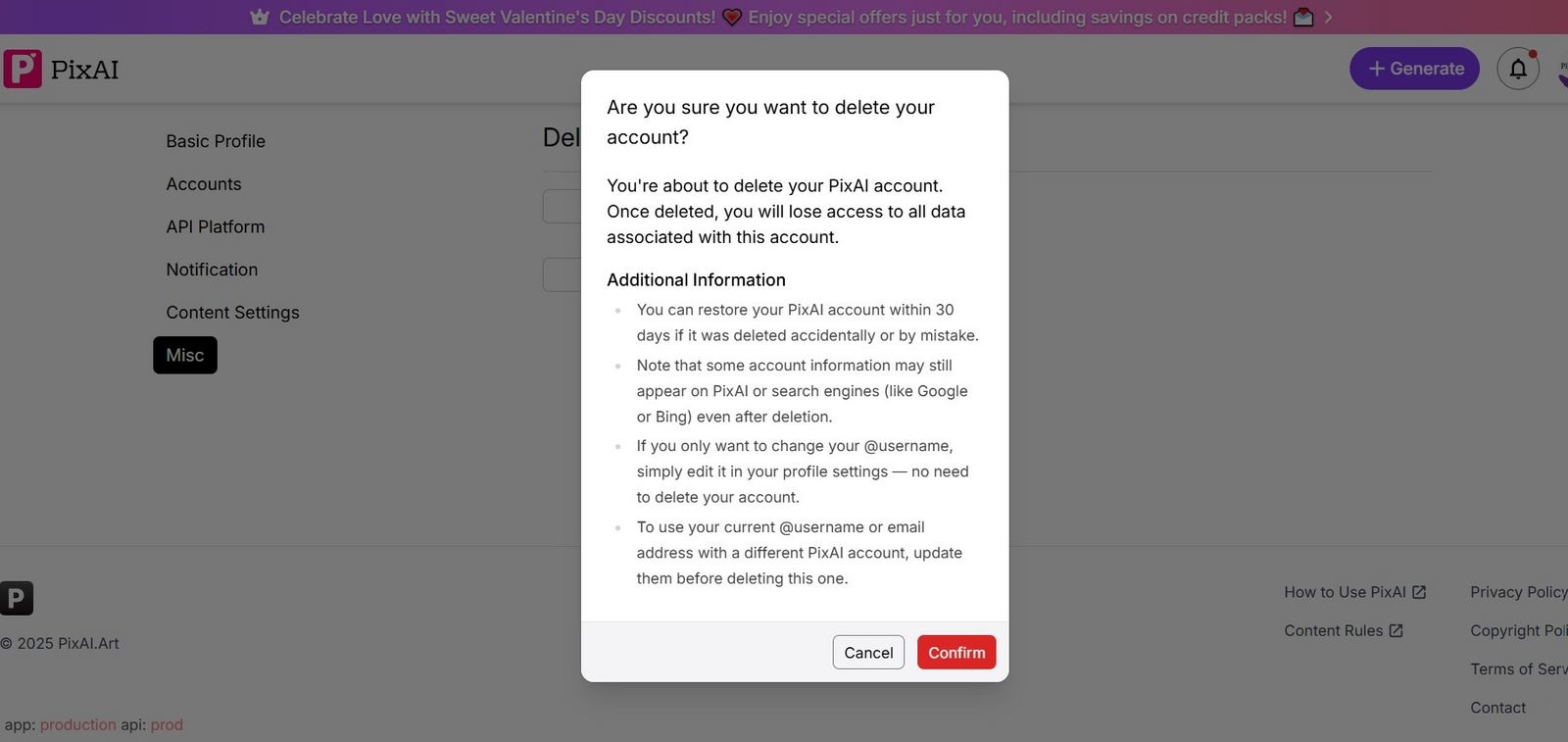
Inside the Misc section, you will find the final option to “Delete Your Account”. Clicking this button will begin the secure account closure process, which includes a confirmation prompt to ensure this action is intentional.
❗️Important Note:
You cannot delete your account if you currently have an active subscription.
Before proceeding, please ensure that:
- Your plan has expired or been canceled.
- You are no longer in an active billing period.
If you subscribed through Apple, Google Play, or another platform, please cancel the subscription there first. Once your billing period ends, the deletion option will become available.
This measure prevents billing issues and ensures your purchases are properly closed before account removal.
Account Restoration Process on Web
Your account’s data is valuable. To protect it, we implement a 30-day recovery window after you initiate deletion. During this time, your account is deactivated but not erased.
Account Status During the 30-Day Period:
While in the deletion queue, your account is functionally suspended. You will be unable to:
- Make any changes to your profile or settings
- Claim daily credits
- Generate new images
- Like, comment, or bookmark content
How to Restore Your Account:
Changing your mind is straightforward. Within the 30-day window:
- Simply log in to the PixAI website.
- The system will automatically detect your account’s status and present a clear notification with a “Restore” button.
- Click “Restore.”
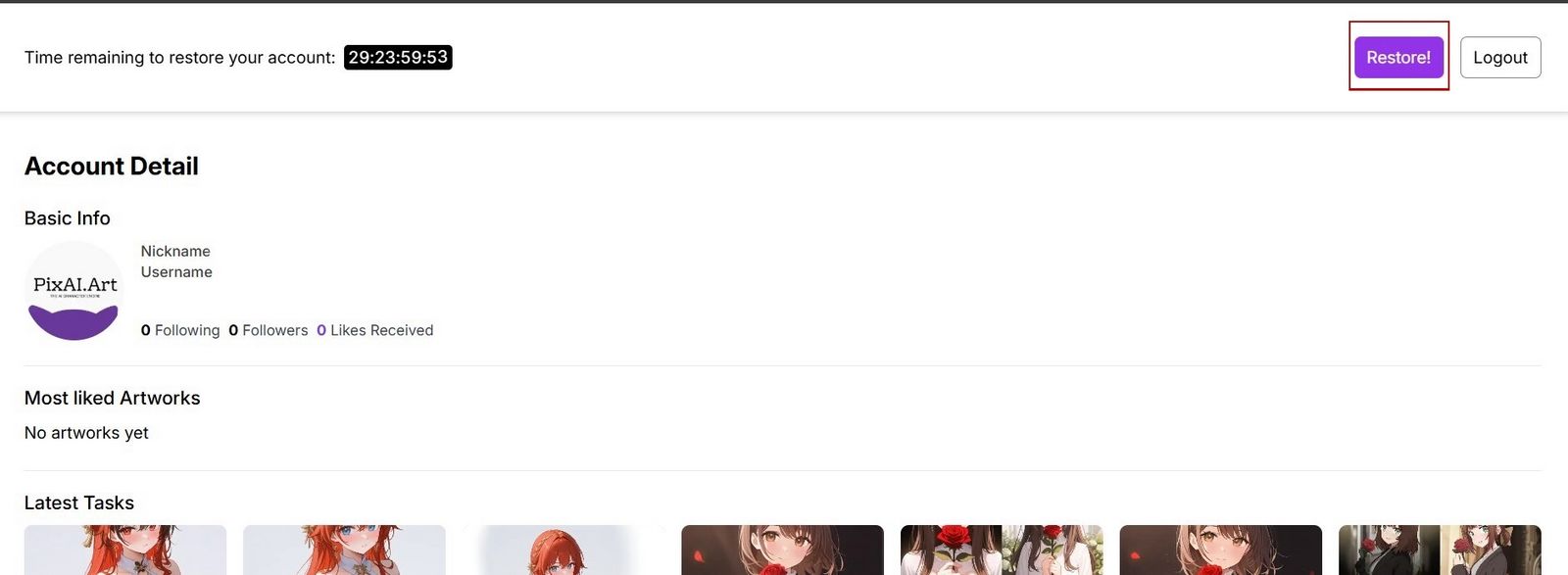
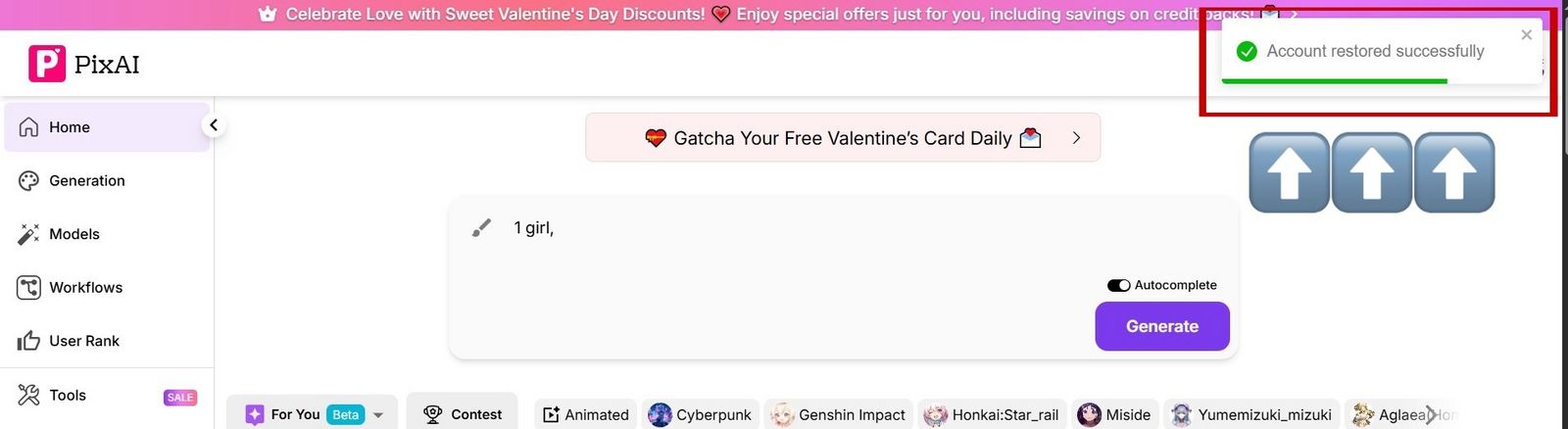
Your account will be immediately and fully reinstated, with all your artwork, history, and data completely intact.
🚫 Permanent Deletion: The Point of No Return
Once the 30-day recovery period ends, your account is permanently scheduled for deletion. This action is final and cannot be undone. Please be aware of the consequences:
- All your generated artwork, models, and data will be permanently erased.
- Your account history, credits, and favorites will be lost.
Considering Alternatives?
A full account deletion may not be necessary. Here are some alternatives:
- Change Your Username: You can create a new identity by changing your @username in your settings.
- Update Your Email: Free your current email address by assigning a different one to your PixAI account.
- Take a Break: Simply log out. Your portfolio and data will remain securely stored for your return.
On App
Please note that the mobile app is used to initiate account deletion, but it does not display the deletion progress or allow for restoration. To monitor the countdown or restore your account, you must visit the PixAI website.
Deleting Your Account on iOS
Step 1:
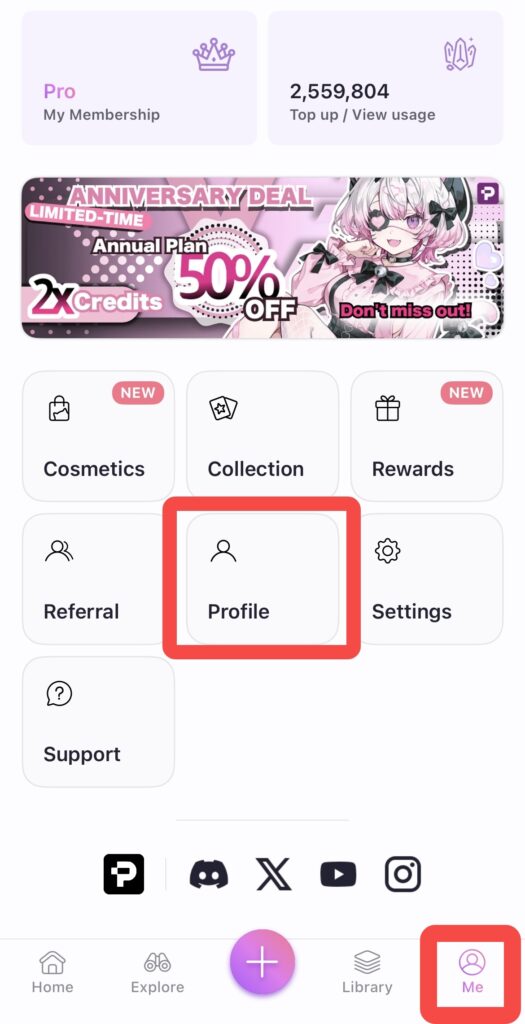
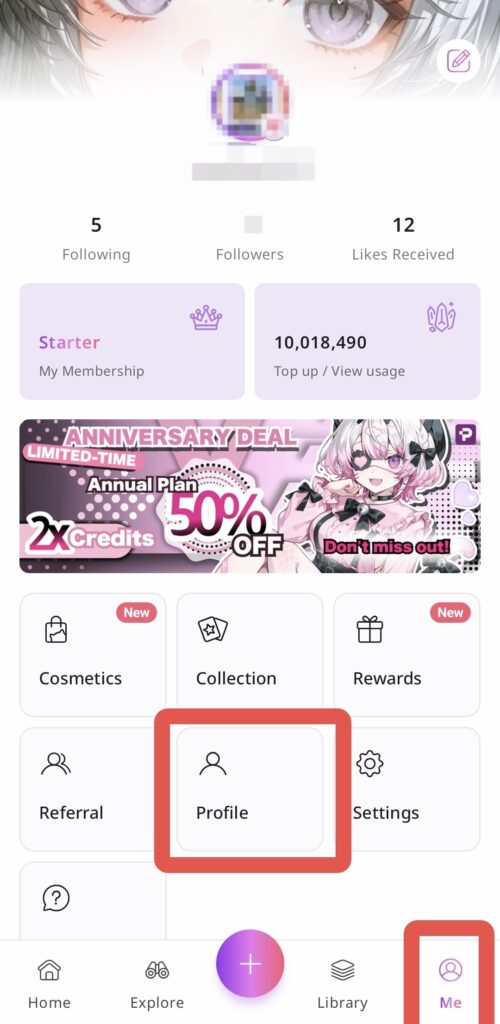
Head over to the Me Tab: Open the PixAI app and tap on the Me icon in the bottom navigation bar.
Tap on Your Profile: At the center of the Me screen, you’ll see your profile. Give that a tap to access your account settings.
Step2:
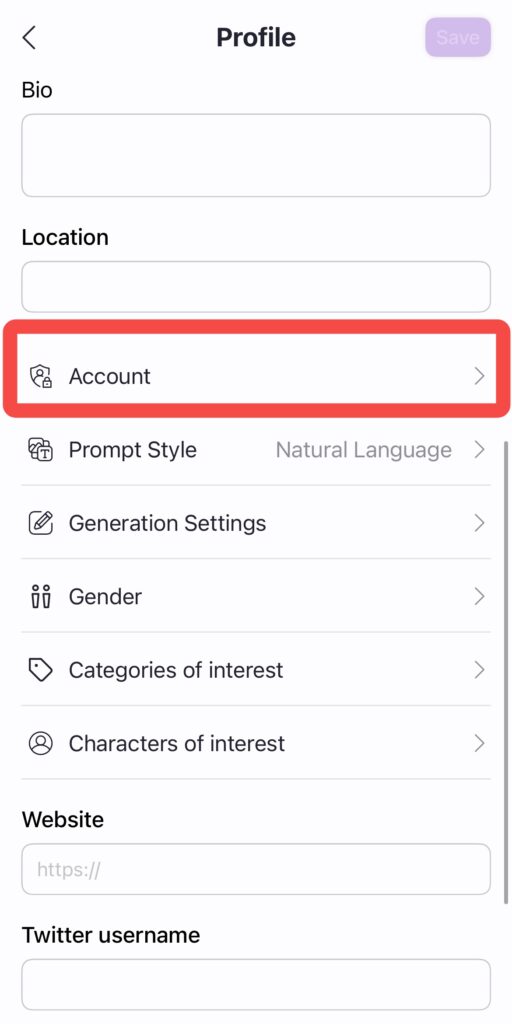
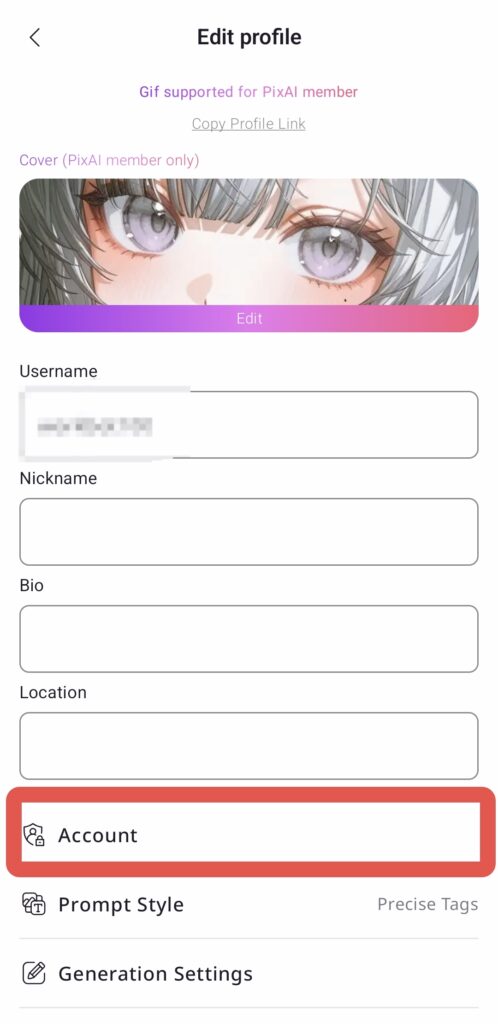
Find and Select Account: Simply scroll down within your Profile until you see the Account option. Tap on it to open the account management menu.
Step 3:
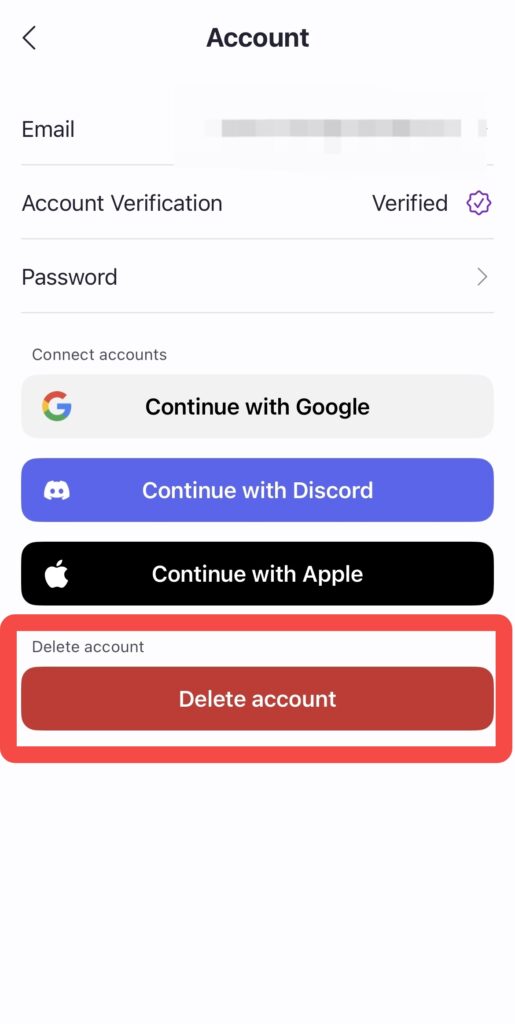
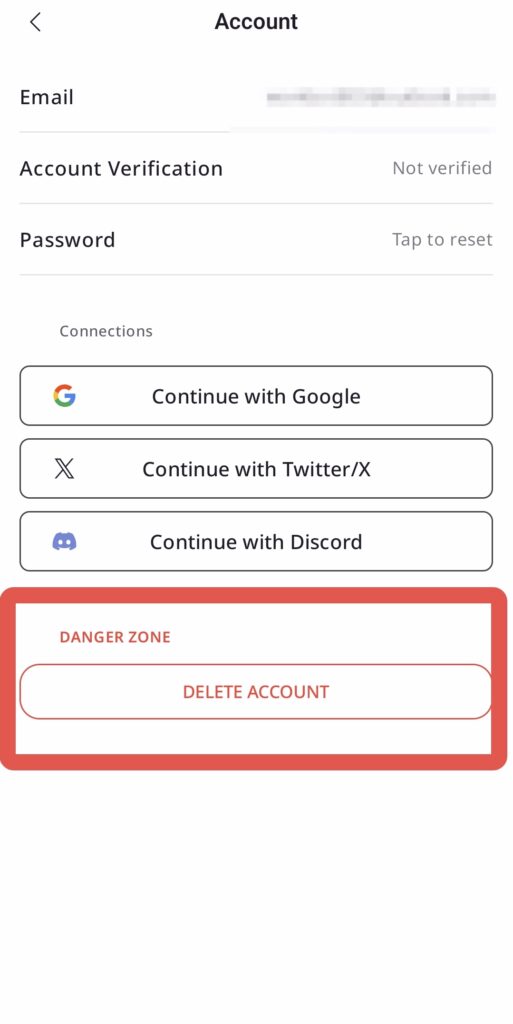
Choose Delete Account: Here, you will find the red Delete Account button.
Tapping this will begin the secure deletion process, which includes a final confirmation to ensure this is really what you want to do.
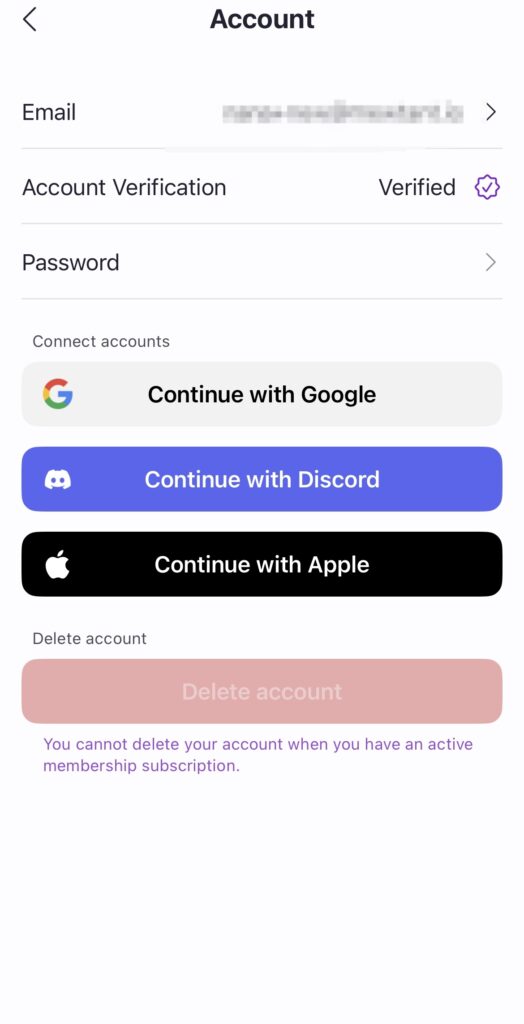
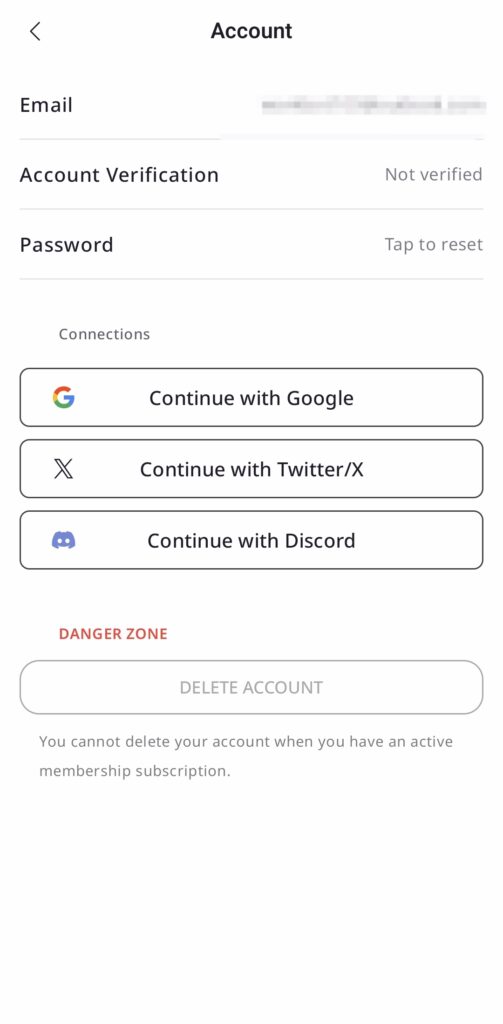
Please be aware that you will not be able to delete your account if you have an active premium membership subscription.
If you have a subscription, please ensure you cancel it through the Apple App Store or Google Play Store first. Once the billing period has ended, you can then proceed with the steps above.
Deleting Your Account on Android
The process on Android is almost identical to iOS, with only slight visual differences in the interface. The steps to access the Delete Account option via the Me tab and Profile section are the same.
This detailed deletion and restoration framework is built to give you full control and peace of mind. If you need assistance or encounter issues during this process, please reach out to our support team at our Feedback Page. We’re always here to help.
We’re truly sorry to see you go, but we thank you for having been a part of the PixAI community and wish you the best in your future creative endeavors. If your journey leads you back to us, we’ll be here.