
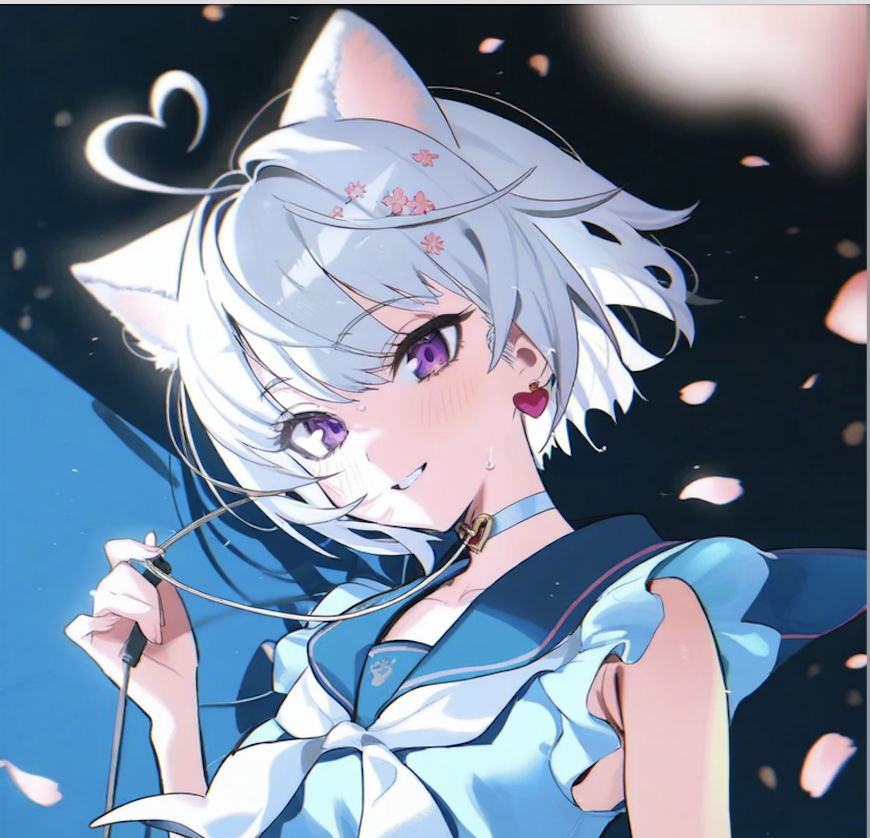
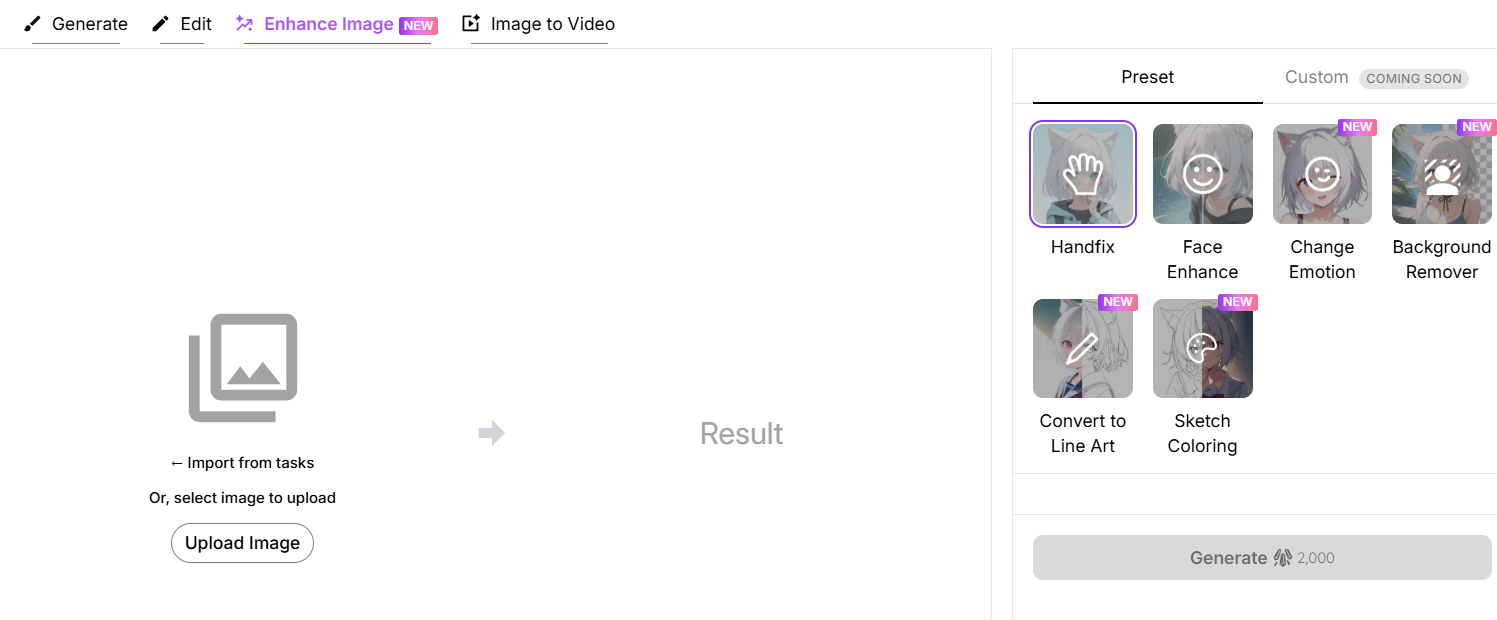
PixAI offers a powerful suite of enhancement tools designed to transform your generated or uploaded images into professional-quality artwork. Whether you need to fix anatomical details, enhance facial features, or completely transform your image’s style, these six essential tools have you covered: Hand Fix, Face Enhance, Background Remover, Convert to Line Art, Sketch Coloring, and Change Emotion.
💡 New to PixAI? Check out our Quick Start Guide first.
💡 For image generation basics, read our Generation Guide.
Getting Started with Enhancement Tools
You can access these tools from Enhance Image page.
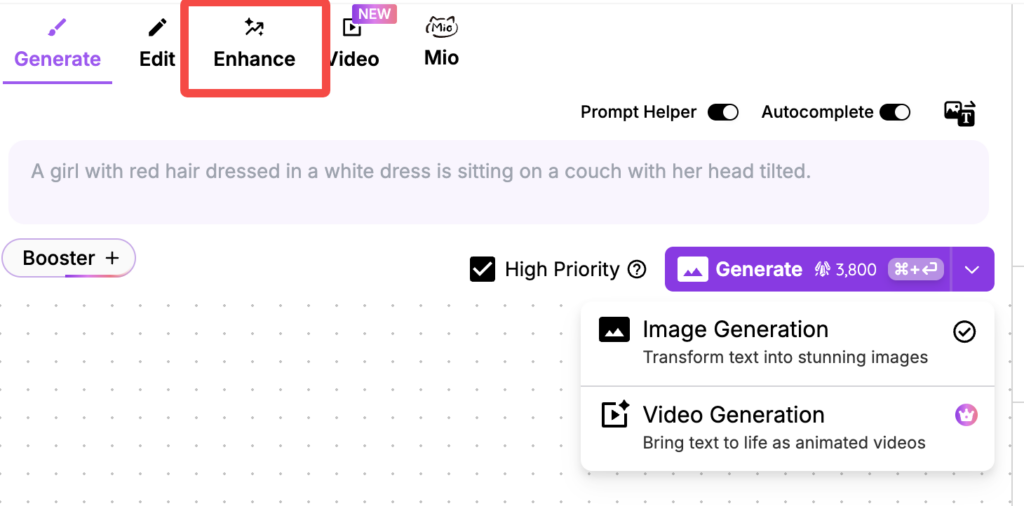
Simple Three-Step Process
Using any enhancement tool follows the same intuitive workflow:
- Locate Your Image: Find your target image in your task history or upload a new one from your device
- Select Enhancement Tool: Choose the appropriate tool from the enhancement menu
- Generate Results: Hover over your chosen tool and click “Generate” to apply the enhancement
The enhancement tools are accessible from the dedicated Enhance Image page, providing a centralized hub for all your image improvement needs.
Enhancement Tools Guide
Hand Fix
What It Does
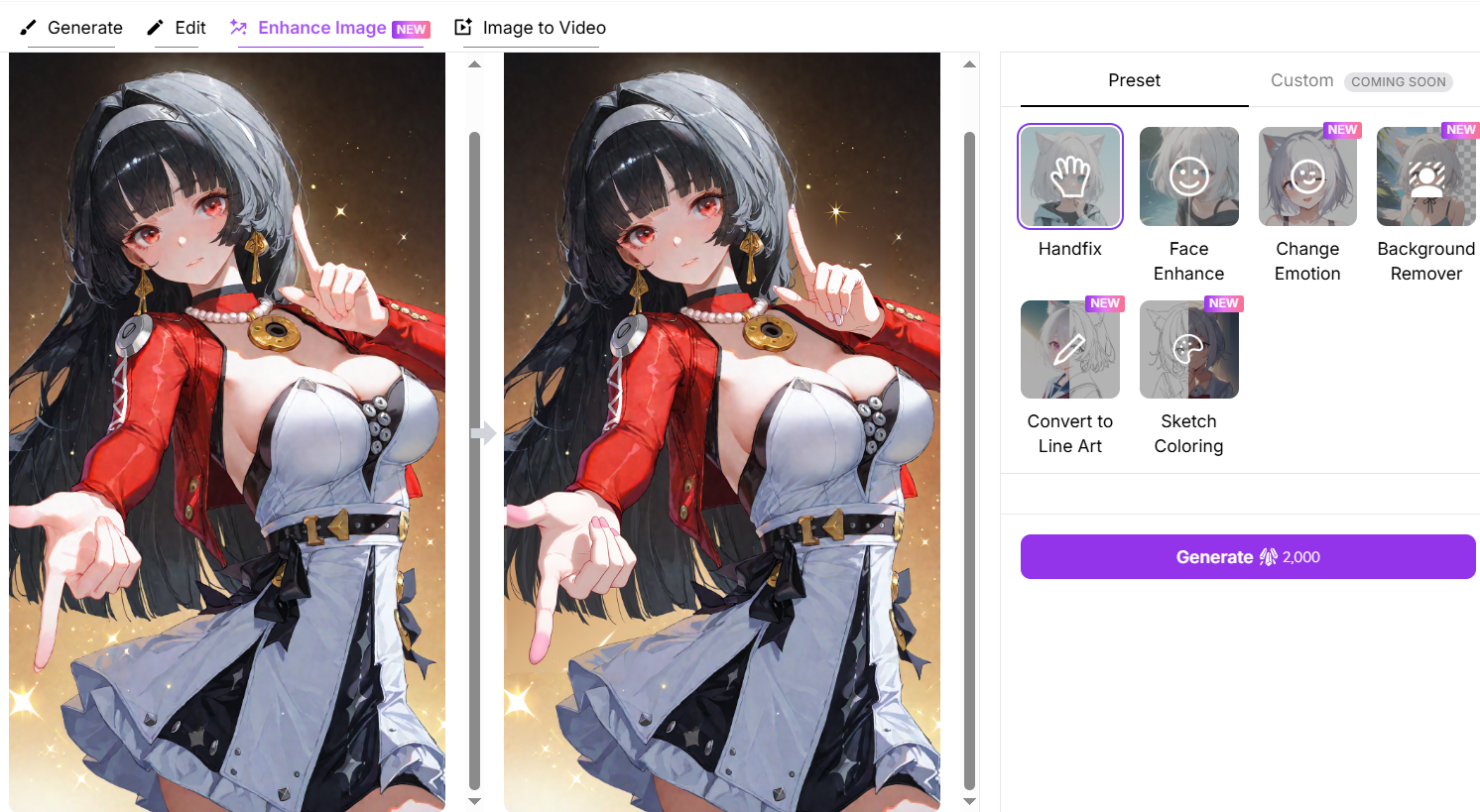
The Hand Fix tool automatically improves the quality of hands in your artwork.
Please note that the Hand Fix tool is specifically designed to enhance existing details and improve the clarity of hand textures. It cannot be used to correct anatomical errors, such as removing extra fingers or fixing merged limbs. For significant structural issues, we recommend using the Edit feature, Flow Edit or PixAI Reference Pro for a complete manual correction.
How to Use
- Navigate to your image in task history or upload a new image
- Select the Hand Fix tool from the enhancement menu
- Click “Generate” and let the tool work its magic—no additional input required!
Pro Tip for Best Results
Use this tool on images where hands are a focal point, such as character portraits or action poses.
Face Enhance
What It Does
The Face Enhance tool automatically improves facial quality and detail in your artwork. It enhances facial features, refines subtle details, and ensures your characters achieve their full visual potential with improved clarity and definition.
How to Use
- Locate your target image in task history or upload from your device
- Select the Face Enhance tool from the available options
- Click “Generate” to let the tool enhance facial features automatically
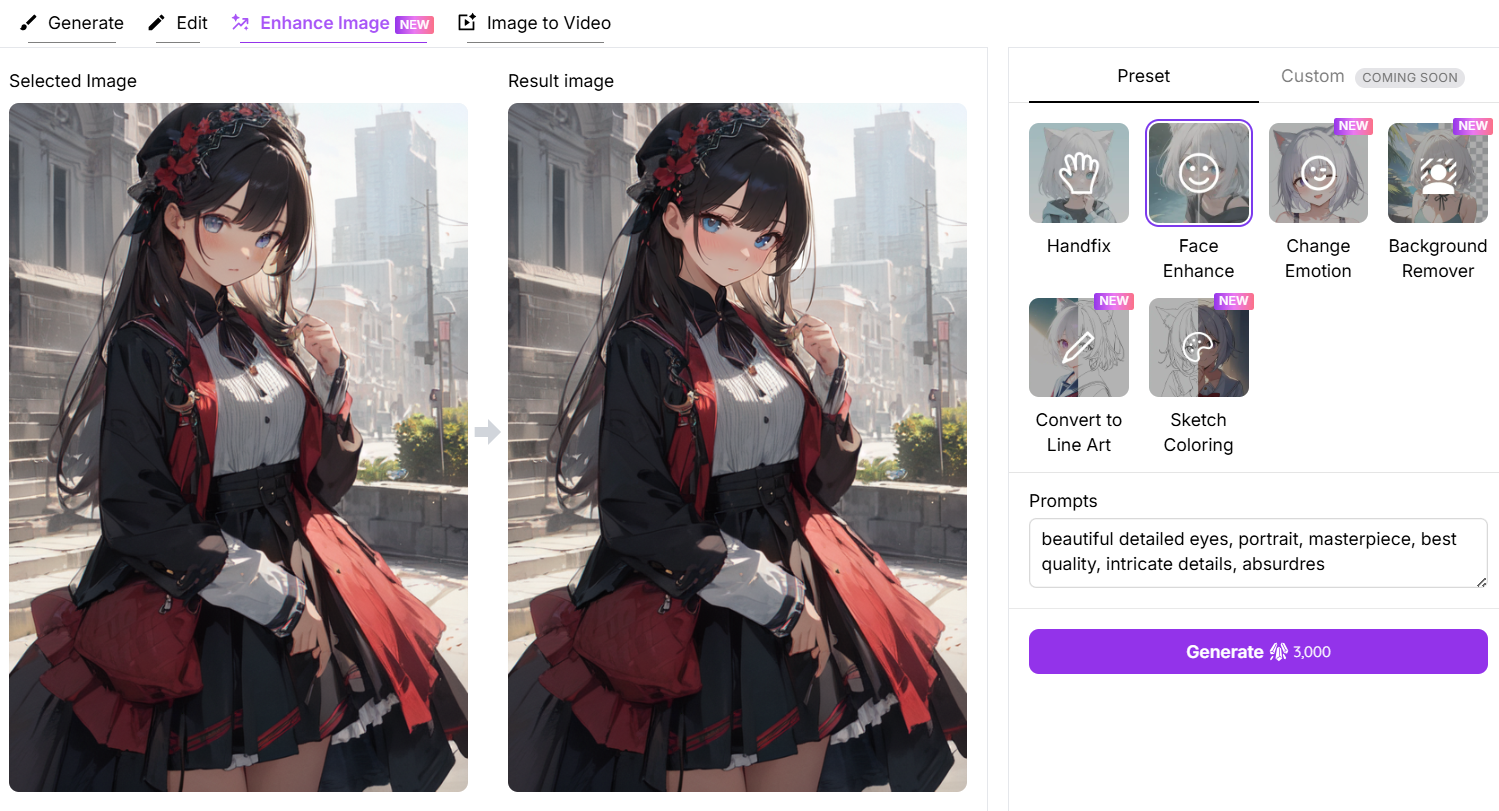
Pro Tip for Best Results
This tool performs exceptionally well on close-up character portraits or any image where facial details significantly impact the overall composition.
Background Remover
What It Does
The Background Remover tool instantly eliminates distracting backgrounds from your images, creating clean character isolation perfect for professional presentations.
How to Use
- Access your desired image from task history or upload a new one
- Select the Background Remover tool.
- Watch as the background disappears with automatic gap filling
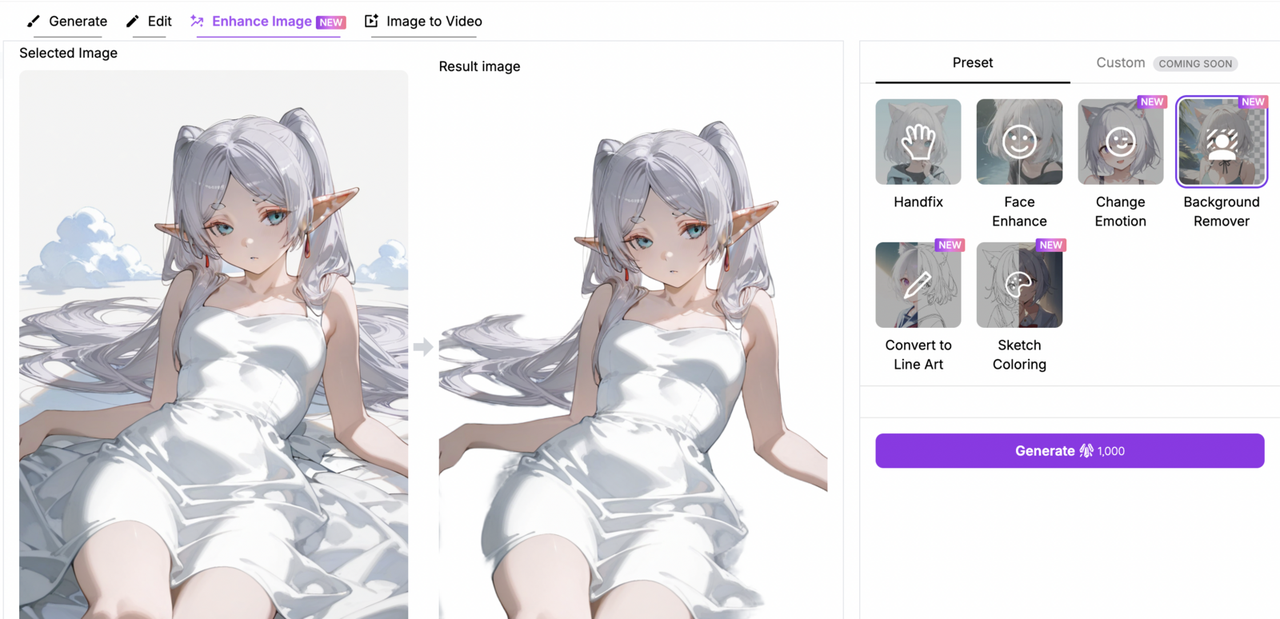
Pro Tips for Best Results
- Use images with clear character outlines and clean backgrounds for the most accurate removal.
- If you’re generating images from scratch, add “white background” to your prompt to make the removal process even smoother.
Perfect For
- Creating clean, professional-looking character portraits.
- Preparing images for use in other projects, like comics or graphic design.
Convert to Line Art
What It Does
The Convert to Line Art tool transforms your detailed artwork into clean, stunning line art. It’s perfect for comics, illustrations, or experimenting with new styles.
How to Use
- Find your image in task history or upload a new one.
- Select the Convert to Line Art tool.
- Watch as your image is transformed into beautiful line art.
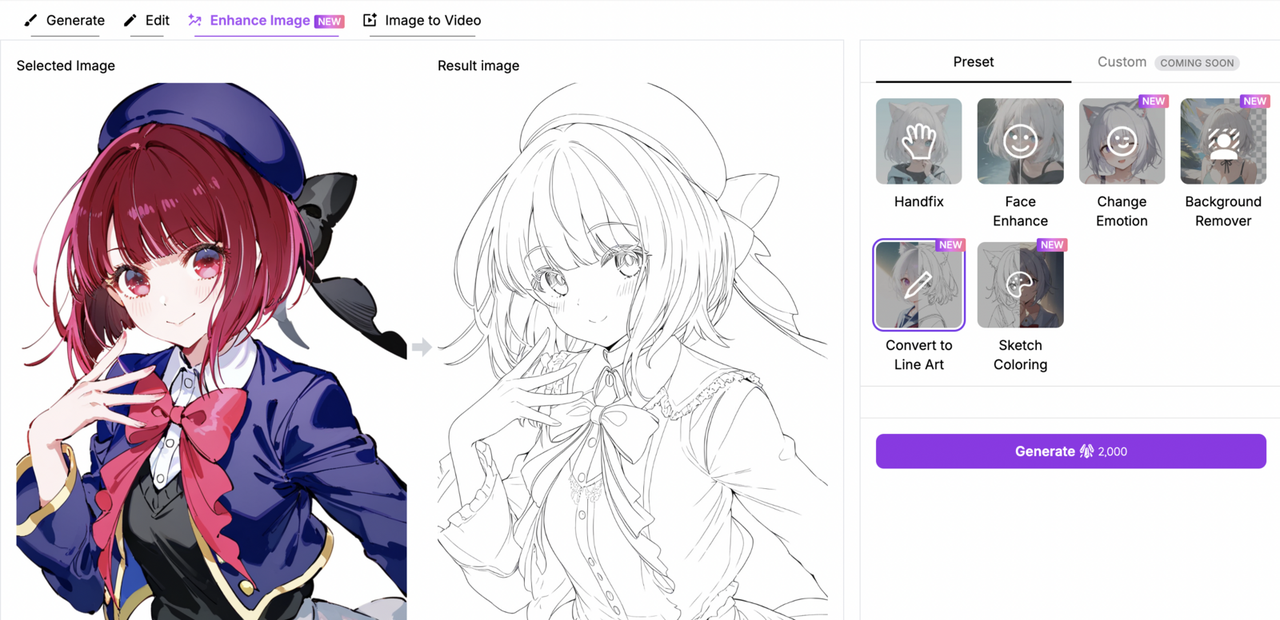
Pro Tips for Best Results
- Different art styles will produce unique line art results. For example:
- Minimalist designs will give you clean, simple lines.
- Detailed paintings will result in more intricate line work.
- Use this tool to create a base for sketch coloring or to experiment with new artistic styles.
Perfect For
- Creating line art for comics, illustrations, or sketches.
- Experimenting with different artistic styles and techniques.
Sketch Coloring
What It Does
The Sketch Coloring tool lets you bring your sketches to life with vibrant colors. Whether you’re starting from a blank sketch or recoloring existing artwork, this tool is a game-changer.
How to Use
- Find your image in task history or upload a new one.
- Select the Sketch Coloring tool.
- Experiment with different color palettes to create the perfect look.
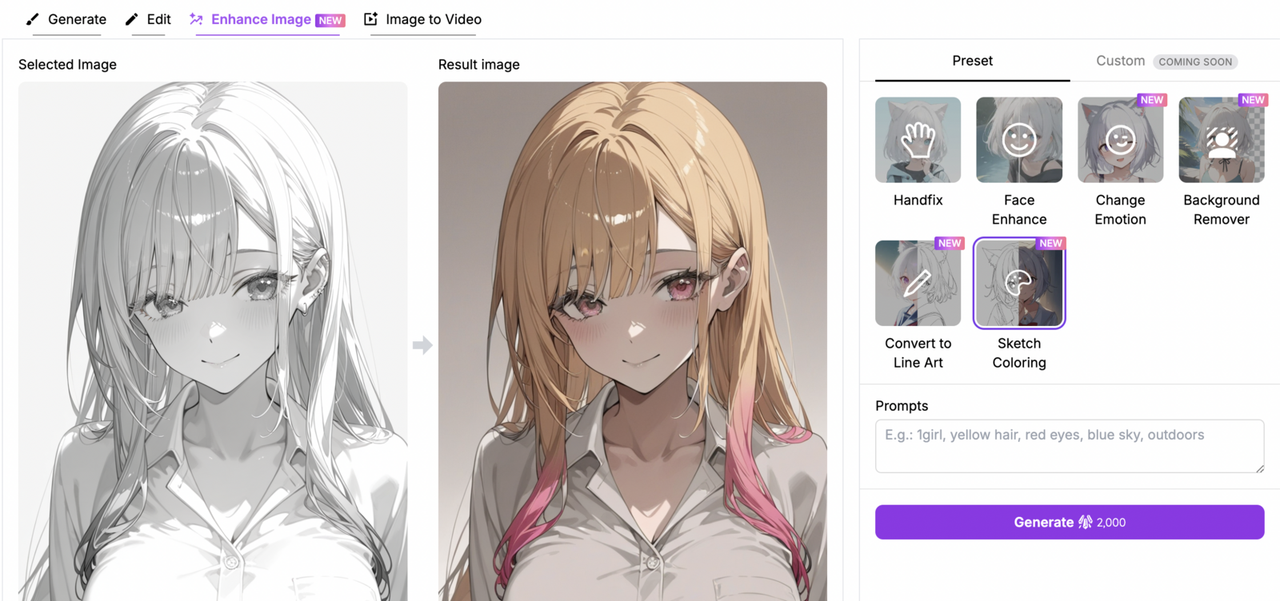
Pro Tips for Best Results
- Start with a clean line art sketch for even color application.
- Use this tool to recolor existing artwork—just upload a colored image and tweak the colors for a fresh new look.
Change Emotion
What It Does
The Change Emotion tool lets you tweak your character’s mood with just a few clicks. From happy to sad, angry to surprised, this tool opens up a world of emotional expression.
How to Use
- Find your image in task history or upload a new one.
- Select the Change Emotion tool.
- Choose an emotion and watch your character transform.
Pro Tips for Best Results
- Use high-quality images with clear facial expressions for the best results.
- PixAI Membership unlocks additional emotions and advanced features, providing even greater control over character expression and emotional nuance.
Mastering Image Enhancement
PixAI’s enhancement tools provide a comprehensive suite of professional-grade image improvement capabilities that can transform any artwork into polished, high-quality results. Whether you’re enhancing hand and facial details, or completely transforming your image’s style and emotional impact, these tools offer the power and flexibility to achieve your creative vision.
Happy enhancing, and welcome to the next level of AI-assisted artwork creation!