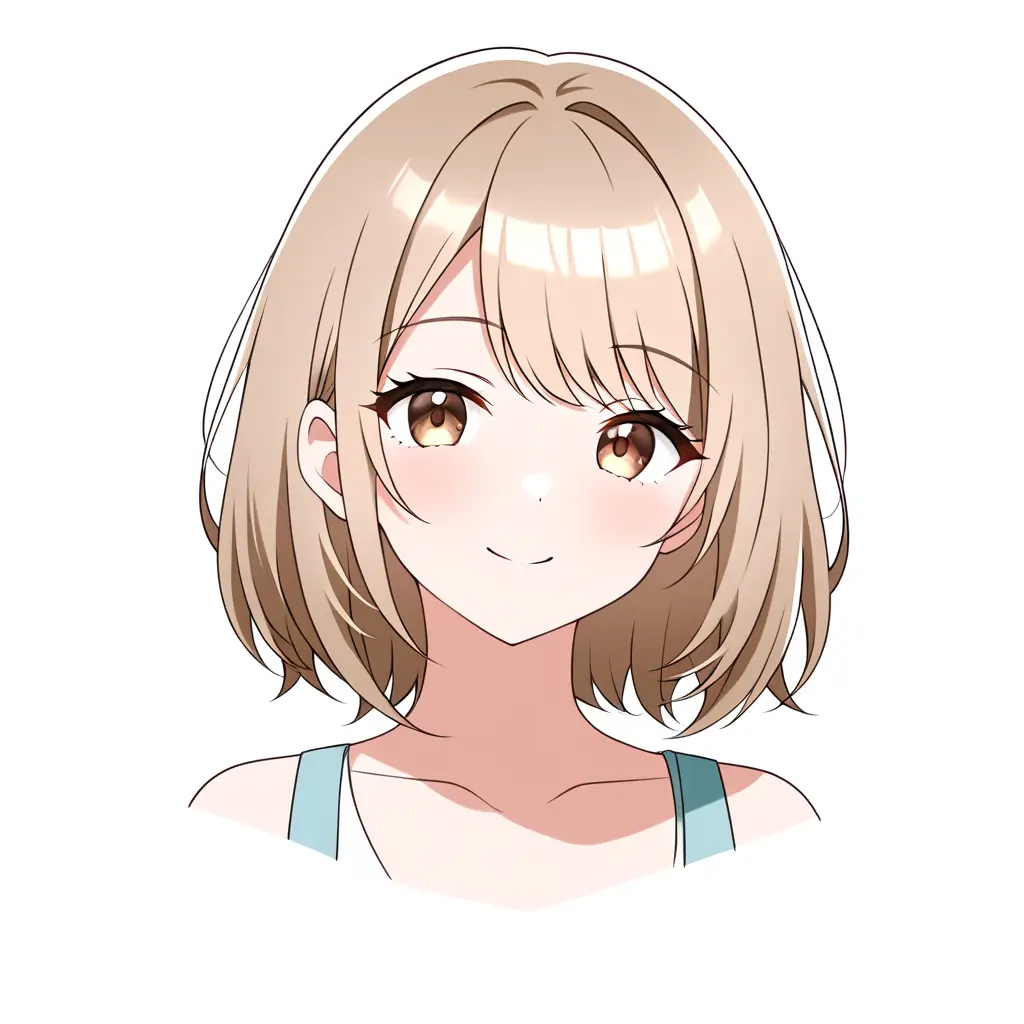
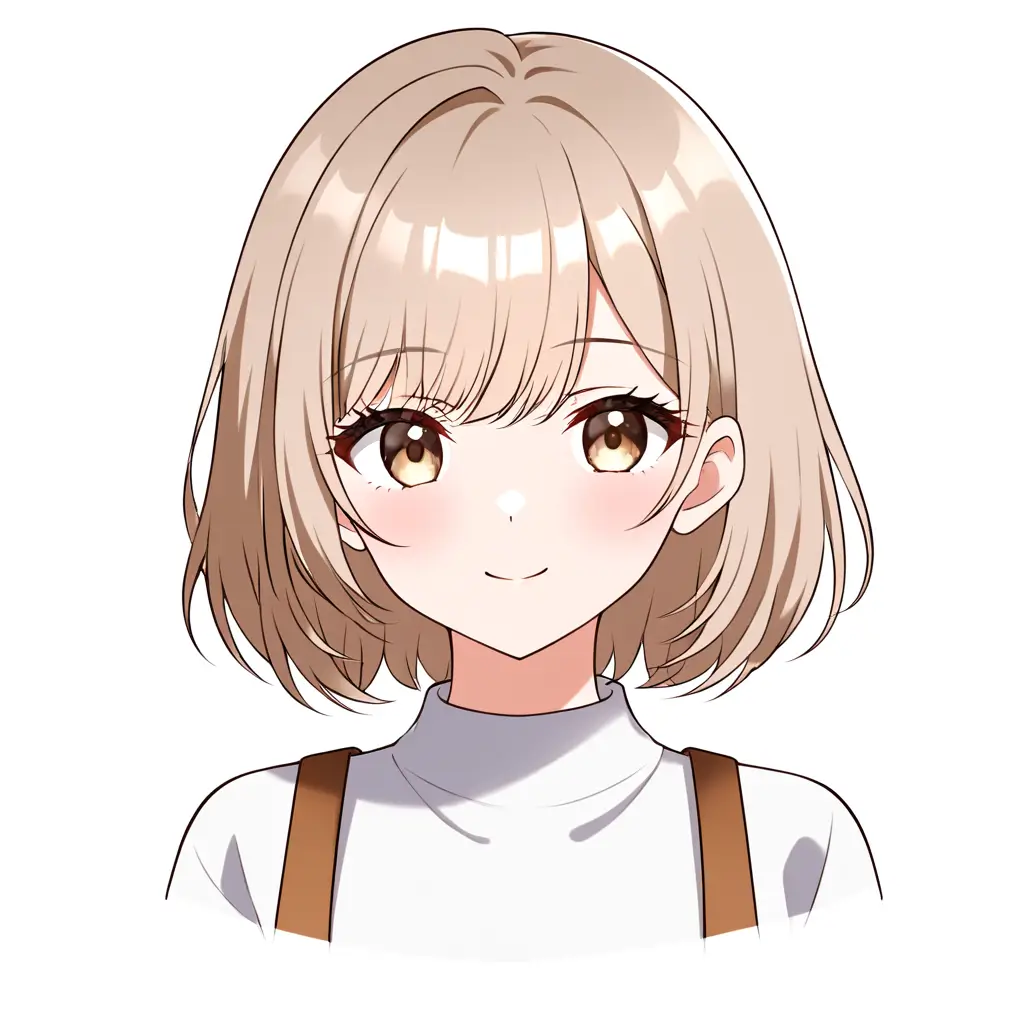
You can easily apply a light brown hair filter to your photos using our photo editing app. Just upload your image, select the hair filter option, and choose the light brown shade to enhance your photo in just a few clicks.
To use a light brown hair filter on your picture with the Pixai.art tool, follow these steps: 1. Visit the Pixai.art website and sign in or create an account if you don’t have one.2. Upload the image you want to edit by clicking on the upload button.3. Navigate to the editing tools or filters section.4. Look for the hair color filters and select the light brown hair option.5. Adjust the filter intensity and other settings as desired to achieve your preferred look.6. Preview the changes and, if satisfied, save or download your edited image.
The Pixai.art tool offers various features for adjusting hair color, including an intuitive color picker for selecting specific shades, sliders for fine-tuning brightness and saturation, and preset color options for quick adjustments. Users can easily experiment with different shades, such as light brown, by applying filters and effects that enhance the hair’s texture and shine. Additionally, the tool supports layering effects that allow for a more natural blend with the original hair color.
The Pixai.art tool offers various features for adjusting hair color, including an intuitive color picker for selecting specific shades, sliders for fine-tuning brightness and saturation, and preset color options for quick adjustments. Users can easily experiment with different shades, such as light brown, by applying filters and effects that enhance the hair’s texture and shine. Additionally, the tool supports layering effects that allow for a more natural blend with the original hair color.