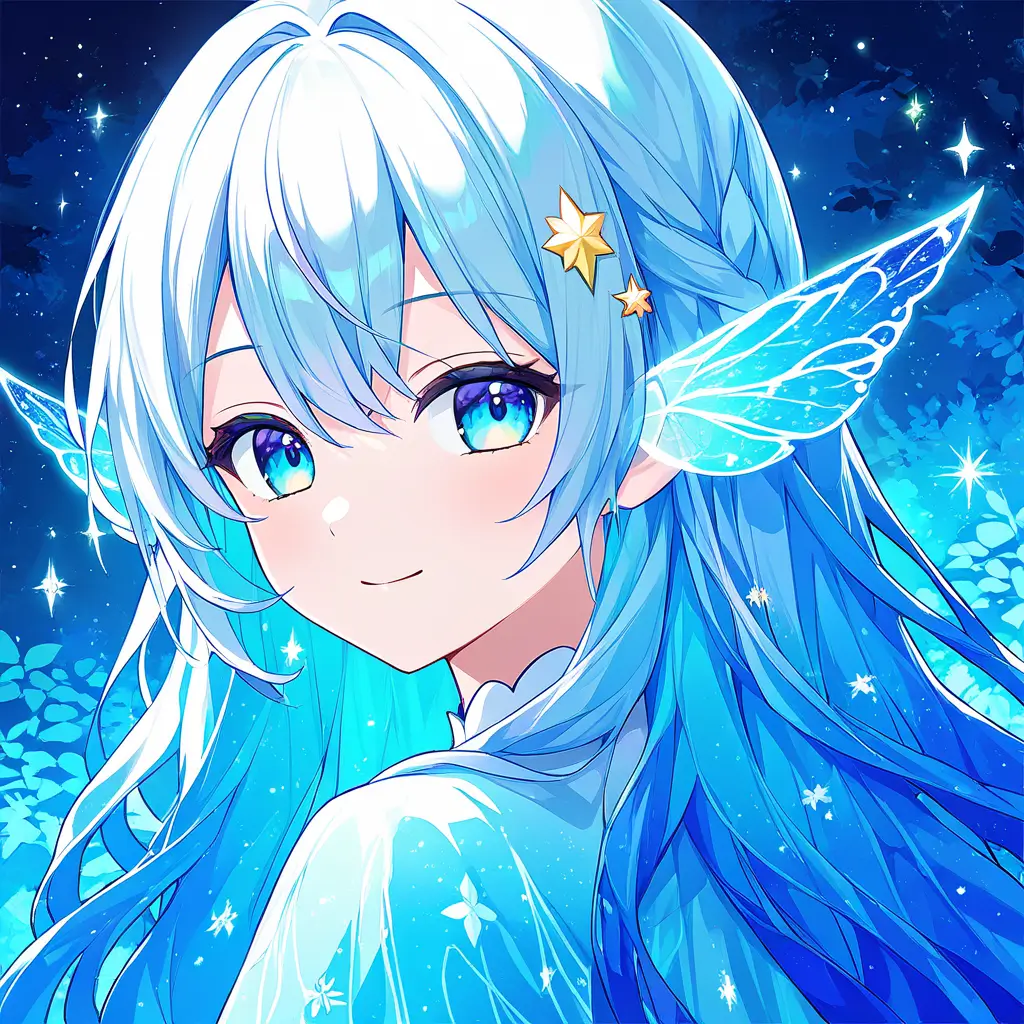
You can create a captivating fantasy portrait using digital art techniques by selecting an art software like Photoshop or Procreate. Start by sketching your concept, then incorporate layers for coloring and detailing. Utilize various brushes to enhance textures and effects, and don’t forget to play with lighting and shadows to add depth. Finally, you can blend techniques, such as photo manipulation and painting, to bring your fantasy character to life.
To design a fantasy character illustration using digital art tools like Pixai.art, follow these steps:1. **Conceptualization**: Begin by brainstorming and sketching rough ideas of your character. Consider their backstory, traits, and visual elements, such as clothing, hairstyle, and accessories.2. **Choose a Digital Tool**: Select a digital art tool that suits your needs. Pixai.art is a great choice for generating illustrations quickly with its advanced AI features.3. **Gather References**: Collect reference images for inspiration. This can include similar characters, color palettes, and design styles to guide your creation.4. **Create a Layout**: Use basic shapes to outline your character’s pose and proportions. This helps in establishing the overall structure before adding details.5. **Refine Details**: Gradually refine your sketch by adding clothing, facial features, and other elements. Focus on the unique aspects of your character to make them stand out.6. **Color Selection**: Choose a color palette that reflects your character’s personality and the mood you want to convey. Use the color tools available in your digital art software.7. **Add Textures and Effects**: Experiment with textures to give depth and realism to your illustration. Consider using brushes and layers to add effects like shadows or highlights.8. **Finalize and Save**: Once you are satisfied with the illustration, finalize the details and make any necessary adjustments. Save your work in the desired format for sharing or printing.9. **Seek Feedback**: If possible, share your artwork with peers or through online platforms to gather feedback and improve your skills for future projects. By following these steps, you can effectively create a captivating fantasy character illustration.
To enhance shading and lighting effects in your digital art fantasy character illustration using Pixai.art, consider the following methods:1. Utilize Layer Mode: Experiment with layer blending modes such as Multiply for shadows and Screen for highlights to achieve more dynamic lighting effects.2. Gradient Tools: Incorporate gradient fills to create smooth transitions between light and shadow, adding depth to your character.3. Custom Brush Settings: Use customized brushes that mimic real-world textures and lighting scenarios, allowing for more intricate shading.4. Color Picking: Select colors from your reference images to ensure that shadows and highlights are consistent with the lighting environment.5. Ambient Occlusion: Apply techniques that simulate the effect of ambient light occlusion to enhance the realism of shadows in creases and folds.6. Light Source Direction: Clearly define the direction of your light source in the scene and maintain consistency throughout the illustration.7. Contrast Adjustment: Adjust the contrast between light and dark areas to make features stand out and add a dramatic effect.By combining these techniques, you can significantly improve the overall shading and lighting of your character illustrations.
To enhance shading and lighting effects in your digital art fantasy character illustration using Pixai.art, consider the following methods:1. Utilize Layer Mode: Experiment with layer blending modes such as Multiply for shadows and Screen for highlights to achieve more dynamic lighting effects.2. Gradient Tools: Incorporate gradient fills to create smooth transitions between light and shadow, adding depth to your character.3. Custom Brush Settings: Use customized brushes that mimic real-world textures and lighting scenarios, allowing for more intricate shading.4. Color Picking: Select colors from your reference images to ensure that shadows and highlights are consistent with the lighting environment.5. Ambient Occlusion: Apply techniques that simulate the effect of ambient light occlusion to enhance the realism of shadows in creases and folds.6. Light Source Direction: Clearly define the direction of your light source in the scene and maintain consistency throughout the illustration.7. Contrast Adjustment: Adjust the contrast between light and dark areas to make features stand out and add a dramatic effect.By combining these techniques, you can significantly improve the overall shading and lighting of your character illustrations.