
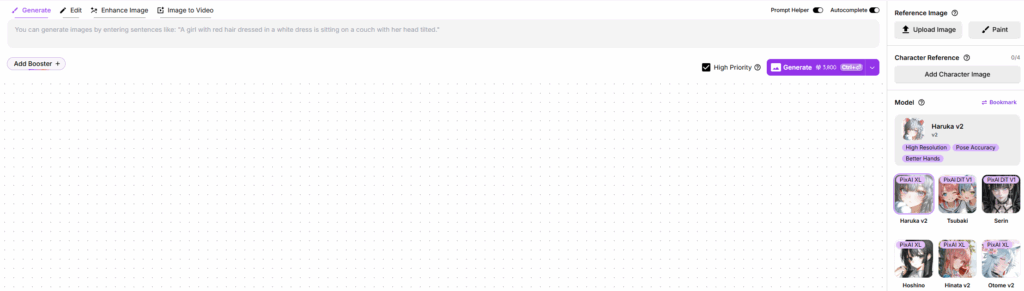
Welcome to the heart of PixAI’s creative ecosystem – the Generation Panel! This powerful interface puts all the tools you need to create stunning AI art right at your fingertips. Whether you’re a beginner or an experienced creator, understanding this control center will transform your creative workflow.
📝 Prompt-Crafting Zone
The top section of the panel is where your ideas take shape. Here you’ll find:
Main Prompt Field: The central space where you build your vision using tags, phrases, or natural language
Powerful Prompt Assistance Tools:
- Auto Complete: Real-time tag suggestions as you type, significantly reducing manual input time
- Prompt Helper: Advanced natural language processing that not only interprets complete sentences in place of traditional tags but also supports multiple languages and automatically enhances your prompts for optimal generation results
- Image to Prompt: Instantly generates relevant tags from any uploaded reference image
👉 Introduction to these three tools
👉 More about Prompt Writing
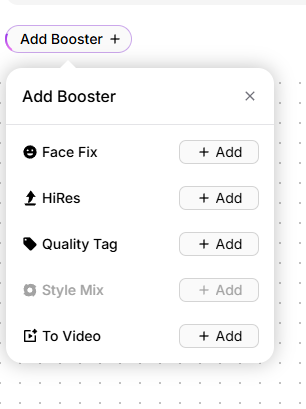
Boosters & Enhancement Tools:
- Face Fix: Automatic facial feature refinement
- Quality Tag: Preset quality enhancements that elevate your generated images (Member-only feature, 👉 more about Membership Perks)
- HiRes Mode: High-resolution generation that produces polished, professional-looking images (generates one image at a time)
- Style Mix: Artistic style combinations (available for Waterfront models)
- To Video: Transform your text prompts into video content using any available models and LoRAs on PixAI, following the same intuitive process as image generation
🖼️ Central Display Area: Your Generated Results
Below the creation tools, this space showcases your generated images with comprehensive management options:
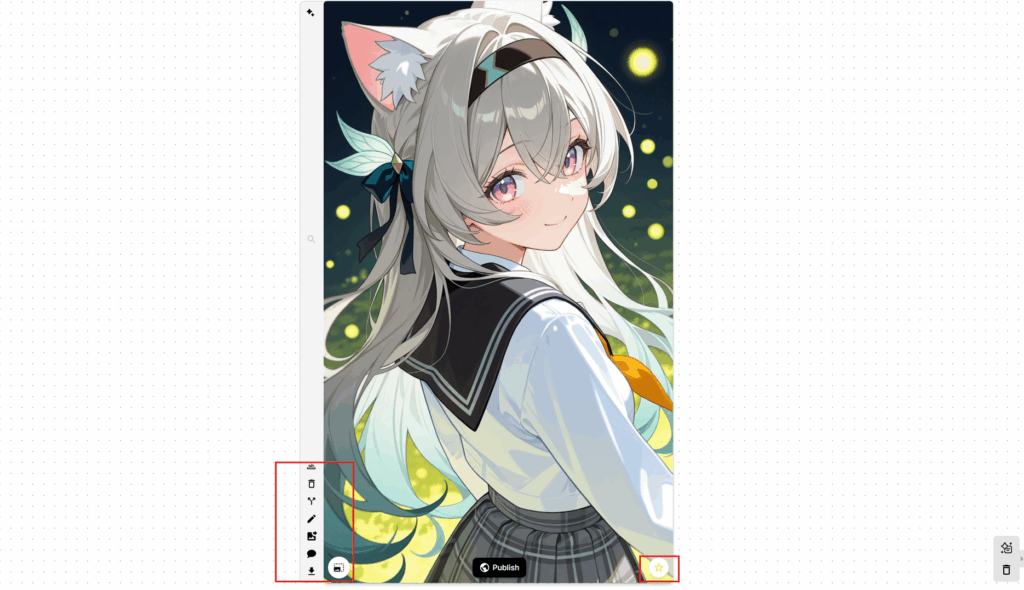
- Animate: Transform static images into movie-quality videos using our powerful Image-to-Video feature. 👉detailed guide
- Describe: Generate prompts from existing images
- Delete: Remove unwanted generations
- Variation: Create new versions from selected images
- Edit: Precisely edit selected images using advanced editing tools 👉detailed guide
- Use as Base Image: Set as reference for new generations
- Start Flow Editing(formerly Chat Editing): Use our innovative flow editing feature to transform images into figures, create selfies with other characters, or explore creative ideas through simple text commands 👉detailed guide
- Download: Save as PNG files
- Enhance: Upscale or improve image quality
- Publish: Share your creations with the PixAI community
- Favorite: Save preferred works to your personal collection (accessible via ‘Favorite’ section on top left or in Generation tasks within your profile page)
⚙️ Right-Side Panel: Technical Controls
The right-hand section manages the technical aspects of your creation:
- Reference Image
- Model Selection: Browse and choose from specialized AI models tailored for different artistic styles. 👉More about SDXL Models and Dit Models(Tsubaki & Serin)
- LoRA Integration: Add specialized learning packets for specific characters/styles. 👉 More about LoRAs and how to train LoRAs
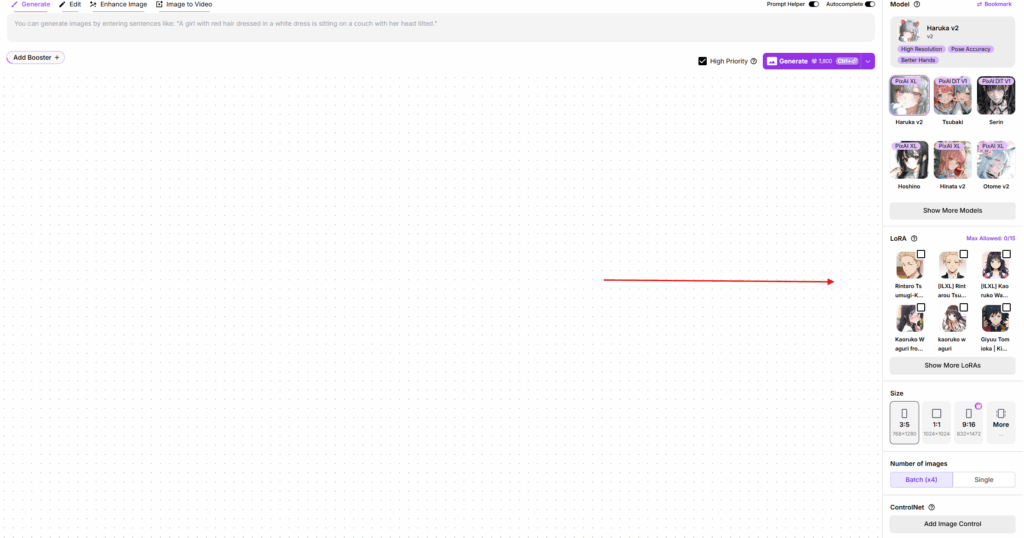
- Size Controls: Choose from preset dimensions or set custom sizes
- Batch Settings: Select between generating 1 or 4 images at once
- ControlNet: Use uploaded images to guide composition and structure
🔧 Advanced Settings Section
Located below the technical controls, this area includes:
- Sampling Methods: Various algorithmic approaches for generation
- Sampling Steps: Precision control over generation iterations
- CFG Scale: Adjust creative freedom vs. prompt adherence
- Seed Management: Control randomness and reproducibility
- Note Function: Save and load custom setting templates
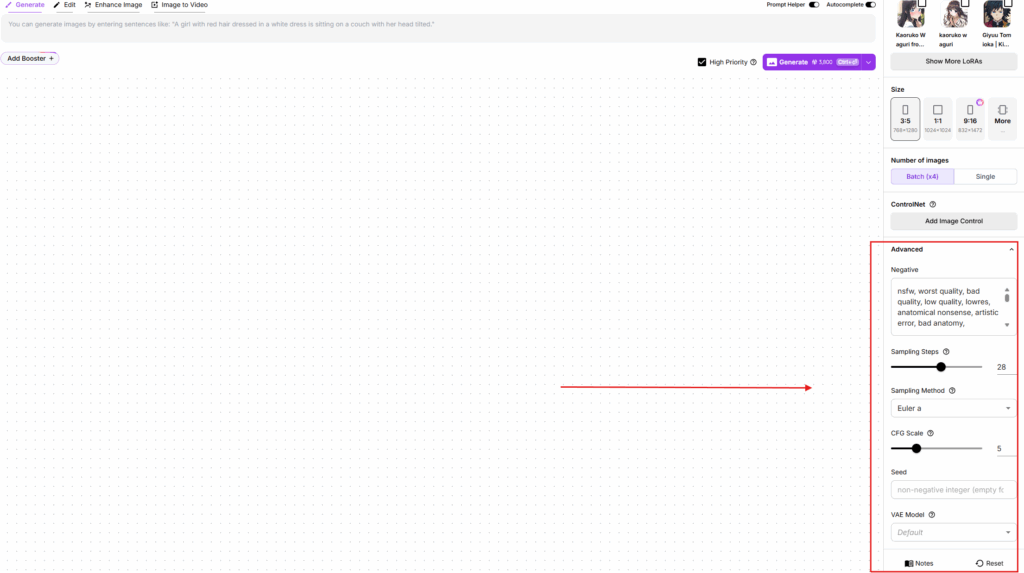
👉 More about Advanced Settings
This is the Generation Panel – your comprehensive creative workstation.For detailed guides on additional features including the Edit panel, Enhance Image functionality, and Image to Video capabilities, please explore our dedicated articles!